Recuva – Remarkable

What a day. In front of me was a computer that was booting to nowhere. It was just a continual loop back to the statement that there were not boot files available. Then, as I got closer, I heard the tell-tale clicking of the hard drive. The good news was that it was still spinning. The bad news was that there were some critically important files on the drive that hadn’t been backed up (no, it wasn’t my drive). Option #1 – call in a data recovery company to recover the data, at a cost of about $1000. Option #2, plug it into an external enclosure and hope. The first couple of computers I plugged the drive into didn’t see it at all. Not looking good. Finally found one that recognized the drive. Looking better. Looked at the properties of the drive. 120 GB drive, 120 GB available. Really not looking good.

Enter Recuva. Recuva is software from the same company that puts out ccleaner, one of my favorite clean-up programs. So, I downloaded Recuva and ran it against the drive. Well, lo and behold, after a couple of hours, I was able to recover the critical files. Not all files were recoverable, but it did a great job, was easy to use, and did I mention that it is free? Some the features of Recua:

Undelete files on your computer

Deleted a file by mistake? Recuva brings lost files on your computer, USB drive, camera or iPod.

Recovery from damaged or formatted disks

Even if you’ve formatted a drive so that it looks blank, Recuva can still find your files on it.

Recover deleted E-Mails

Emptied your email trash and need it back? Recuva’s got you covered with full support for Microsoft Outlook Express, Mozilla Thunderbird, or Windows Live Mail.

Recover deleted iPod music

Deleted music from your iPod or MP3 player? No problem, Recuva will get this back for you along with any additional track data.

Restore unsaved Word documents

Did Microsoft Word crash or did you forget to save that important Word document. No problem with Recuva! As it can intelligently rebuild Word documents from their temporary files.

Quick-start Wizard

If you need your files back right away without fiddling with options, Recuva’s Quick-Start Wizard is the answer.

Deep Scan

Recuva can find most files within a minute. Or, set the Deep Scan to look for more deeply-buried results.

Securely delete files you want to erase forever

Want to protect your deleted files? Recuva also allows you to permanently erase any traces of deleted files.

Portable Version

Take Recuva with you wherever you go with the portable version.

Full OS support and many languages

Recuva has support for every modern version of Windows and 37+ languages.
Download it here – http://www.piriform.com/recuva

Mozy vs Carbonite – Off-site Backup Thoughts

In the past, I’ve recommended options for backing up your important files, since we all know that at some point in time, your computer or hard drive is going to die. One of the options I’ve mentioned is backing up your data to an off-site location. The reason for this is that in the event of catastrophe, your files will be available to you from where ever you might be.

Two off-site companies are Mozy and Carbonite. Recently I’ve had to experience the restore capabilities of both companies and I found out that there is a world of difference between the two.

A couple of years ago, a friend of mine, who was using Carbonite, had to restore her files from the vendor. Several days after the restore started, she was still having problems getting her files. Many calls and e-mails to tech support later, her files were finally recovered. Not having experienced Carbonite before, I wasn’t sure whether this was an isolated incident or not. Well, come to find out that it wasn’t. A couple of months ago, another friend, also a Carbonite user, had to purchase a new computer and went to restore her files from the vendor. Several days later, she was still trying to recover her files from the vendor. Many calls and e-mails later, she had her files but the frustration felt by both individuals was incredible.

Just recently, I lost my hard drive. I use Mozy for backup needs and when I needed to restore my files, I logged onto the site, chose the files/folders to restore, waited an hour while Mozy processed the request, clicked the download button and within a couple of hours, my files were on my new hard drive. It was incredibly easy, pretty quick, and very painless. Additionally, Mozy allows you to duplicate the off-site backup to an external hard drive that is attached to your computer so restoring your files would be even easier.

Having backups of your critical files is extremely important. Being able to restore those files in a timely manner is also important. Before my most recent experience with the restore functions of these two vendors, I’d say that they were pretty comparable. After experiencing the restore functions, I’d say Mozy is the better program hands down. My recommendation – Mozy. If you’re using Carbonite, switch.

https://mozy.com/
http://www.carbonite.com/

The Proper Care and Feeding of Your HDTV, Phone, and Camera

One of the things I’m asked quite frequently is how to clean the screens of computers and laptops. There are specials cleaning materials you can purchase at office supply stores that will clean both your computer screens and your TV screens. You can also make your own cleaning solution by mixing distilled water (make sure it’s distilled) and white vinegar in equal proportions into a spray bottle.

To clean your screen, start with a dry, microfiber cloth. Move it in circular motions. Be gentle, but apply slight pressure on particularly stubborn spots.

If that doesn’t clean the screen, use your cleaning solution. Turn off your laptop. Spray the cleaner lightly onto the, not onto the monitor. Wipe as described above, then wait ten minutes before booting up.

You can find additional tips on cleaning your other electronics by clicking on the following link.

The Proper Care and Feeding of Your HDTV, Phone, and Camera.

Realtime Updates On Your Google Search Results

Cool Google Search Tip: Google has a feature that brings your search results to life with a dynamic stream of real-time content from across the web. Now, immediately after conducting a search, you can see live updates from people on popular sites like Twitter and FriendFeed, as well as headlines from news and blog posts published just seconds before. When they are relevant, Google ranks these latest results to show the freshest information right on the search results page.

Try searching for your favorite TV show, sporting event or the latest development on a recent government bill or world event. Whether it’s an eyewitness tweet, a breaking news story or a fresh blog post, you can find it on Google right after it’s published on the web.

Click on “Latest results” or select “Latest” from the search options menu (see the following tip to access this menu) to view a full page of live tweets, blogs, news and other web content scrolling right on Google. You can also filter your results to see only “Updates” from micro-blogs like Twitter, FriendFeed, Jaiku and others.

An example: I did a Google search for “Chile earthquake”. From the search results page, I scrolled down until I found “Latest results for Chile earthquake”. Once I clicked on that link, I was taken to a page that continually updated with links to the most recent web entries from all over that dealt with the earthquake in Chile.

Another Cool Google Tip: Kind of a hidden feature on the Google search results page is the light blue bar just above the search results. If you look at the left side of the bar, you’ll see an option to “Show Options”. When you click on this, Google opens a column on the left that allows you to further refine your search. One of the most useful sections of this column is the time frame filter. You can click “Latest” to see what I discussed in the first section, or find results that occurred in the past 24 hours, week, or year.

Many Microsoft Products Going Off Support Soon – Security Watch

In the coming months Microsoft will be ending support—including security updates—for a number of important products. If you’ve avoided updating so far, you might want to get moving.

The first event will be April 13, 2010 (like all end-of-support days, a patch Tuesday), when support will end for 2 important configurations: Windows Vista with no service packs a.k.a. Vista RTM and Vista SP0, and Windows XP SP2. If you are running these versions after that April 13 you will no longer receive updates or support. In each case, the answer is obvious: Apply the latest service pack SP2 for Vista, SP3 for XP. Better yet, if you’re running XP, go get a new PC running a secure operating system, such as Windows 7.

On July 13, 2010, Windows 2000 in all service packs will reach the end of its “Extended Support Phase,” meaning no updates anymore. Its not in any of the announcements, but I presume that this implies the end of all support for Internet Explorer 5, currently only supported on Windows 2000.

On the same July date, all editions of Windows Server 2003 will be moving from the Mainstream Support phase to the Extended Support phase. This wont matter to many, perhaps most users, but it signals the end of “no charge” support and Microsoft will no longer be providing new non-security hotfixes. So you’ll need to open a paid support case in order to get support from Microsoft.

via Many Microsoft Products Going Off Support Soon – Security Watch.

Lesson Learned

I went against a few of my computer “thou-shalt-not” rules the other day and, well, I remembered why they are rules. I was reading a newsletter from a very trusted security site and came across an ad they had posted from a company that claims it’s software can:
Clear malware. Fix PC errors. Restore speed & performance. Prevent crashes & stability issues. Enjoy a ‘just like new’ computer – starting now. More Than 1 Million PCs Fixed.

My home computer is a Media Center PC and I’ve had a cable box plugged into it so that I can watch TV shows on it when the other TVs are being used. For several months, I hadn’t been able to run the media program as one of the drivers was bad and I had to disable the program. The only fix seemed to be reformatting the computer and restoring it back to its original state. I really didn’t want to do that since I’d then have to reinstall programs, etc. so I’d just delayed in doing anything at all. That is until I saw this ad, posted on this reliable newsletter…

So, I went to the site, saw what it claimed to be able to do, downloaded the program and ran the free scan. Sure enough, there in the results was what I was hoping to find. Among the listed items that needed to be repaired was the one dealing with the Media Center program. Well, let’s get to it then. First was that minimal $50 charge to run the fix. If it said it could fix my computer issues without me having to reformat and reinstall then that was okay by me. Then, instead of the 30 minute estimate for repair, it was actually closer to 2 hours, but it was going to fix my computer problem.Then, came the reboot and the test. Sure enough, my Media Center program ran great and I was able to watch TV programs again on my computer, and it did seem to be running a little faster. Cool, no harm no foul.

But wait…why won’t my anti-virus program and firewall program start up? Why is my e-mail program not logging in? What’s going on? I placed a call to the anti-virus company and the tech support mentioned that yes, they had someone else call in with the same problem after running this program and there was probably a fix out there someplace for it but they couldn’t help. So, I went online to the website of the company (Reimage) to contact their tech support and found out that tech support was available by e-mail only but have a look at the FAQ section of the website to see if anything there can help with my issue. Of course, there was nothing that did so I sent an e-mail to the company about my problem. Then, I did a little more searching online and found that this company was pretty bad in getting back to people for help. And, when fixes are done with this software, it rolls back a large majority of Microsoft Updates that need to be reinstalled. And, there were a few other things there that probably would have been nice to know before I had run the fix.

While I was waiting for the e-mail reply from tech support that I wasn’t even sure I was going to get, I was able to fix my anti-virus and firewall programs and downloaded and installed the Microsoft updates I needed, and somehow managed to keep my Media Center program running so all is well that ends well. And I did get a reply back from the company the next day with a supposed fix for my new problems but since I had already fixed those problems I didn’t run their fix.

The lesson learned? If I had done my homework before running Reimage’s fix I most likely wouldn’t have purchased it. I always check user reviews before purchasing hardware but for some reason didn’t even think of it before running this software. Actually, I know why I didn’t. I respected the newsletter that had the ad and believed that they too endorsed that company. Turns out they didn’t and the next newsletter stated that they were not going to be putting ads in their newsletters any longer because they don’t want their readers to think they endorse these companies. My recommendation before purchasing anything is to google the item with the word “reviews” after the item name. Read the user reviews since they are mostly honest. Go to the support page of the manufacturer of the item and see what’s posted there. Usually the FAQ’s will have answers to most common questions about the item but if there’s a blog of any sort, check that out as well. Weigh the positives and the minuses of the user reviews and then make a decision on whether the item is for you or not. My lesson re-learned.

Those Green Doublelined Words on a Web Page

When you surf, do you see random words or phrases with double underlines? When you move your mouse over them, they display an advertisement related to the underlined words.

This feature, called in-text advertising, turns appropriate words in the browser window into links to the advertiser’s website. These sites work with various companies to link to its advertisers. The browsers support these types of ads and they are created in such a way that most ad-blockers won’t block them. You can try to ignore them by not moving your mouse over them and if you happen to click on one, it will take you away from the current page. Some advertisors will allow you to disable the ads but you’ll have to go company-by-company.  To do so, follow these steps.

Step 1

Point to the double-underlined words, but **don’t click**! You’ll see an advertisement open in a small window near your cursor.

Step 2

If the advertisement is from Vibrant, in the upper right corner of the box, click the question mark button. A new browser window will open pointing to the Vibrant in-text advertising page. If you’re using WOT (Web Of Trust), you’ll get a warning about the site. Continue anyway.

Step 3

Point to the Disable tab. Click “Click here to disable.” It will let you know that to disable, you’ll need to have cookies activated and if you ever clean out your browser cookies, you’ll have to redo these steps.

Step 4

The page should update to now say “Click here to enable.”

Step 5

Close the browser window.

I’ve looked at other advertisors to see how to disable their ads and haven’t found any thing yet. I’ll continue to search though, short of installing a 3rd party program to block these ads.

Dragon Naturally Speaking

I picked up Dragon Naturally Speaking over the summer through CircuitCity.com and have been playing around with it. If you don’t know what this is, it’s a program that allows you to speak through an included microphone and watch your spoken words instantly appear in documents, email and instant messages. You can even surf the Web just by speaking! The Nuance Dragon NaturallySpeaking 10 Standard turns your voice into text three times faster than most people type — with up to 99% accuracy. It learns to recognize your voice instantly, and continually improves the more you use it! Just use your voice to dictate and edit in virtually any Windows application, including Microsoft Word, Internet Explorer, Mozilla Firefox and AOL.

Key Features:

  • Easy to Use
  • Use with Many Windows Programs

Key Benefits:

  • Create documents and emails about three times faster
  • Dictate, edit and control applications such as Microsoft Word, Microsoft Internet Explorer, and AOL

Right now, through December 31, you can order the program through Circuit City Online for a final cost of $29.99 after a $45 instant savings and a $25 rebate that you can print from the site. I know a lot of people don’t like rebates, but when I ordered last summer, I got the rebate with no problem, and my final cost was $49.99 so the extra savings is pretty cool. I recommmend the program, especially for those who do a lot of writing. It’s not perfect, and it takes a little while to “learn” your voice and way of speaking, but it’s pretty nice.

http://www.circuitcity.com/applications/searchtools/item-Details.asp?EdpNo=EdpNo=4897583&sku=S30-2011&SRCCODE=CCEM202CN&cm_mmc=EML-_-Main-_-CCEM202-_-circuit202

Never forget to back up your files ever again. Now it’s easy and automatic.

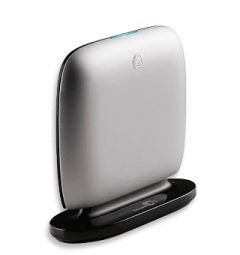
Seagate® Replica™

* Back up your entire computer automatically.
* Take the work and maintenance out of backup.
* Have easy, instant access to accidentally deleted files.
* Effortless, automatic backup for everything on your PC, including the operating system, programs, and settings.
* No tedious installation, nothing to configure.
* Up to 250GB capacity for single PC and 500 GB for multiple PCs.
* USB 2.0.

Every file is perfectly safe.

From a little mistake to a major catastrophe, your files will always come back.

* Easily retrieve accidentally deleted files.
* Restore your entire system in the event of a PC crash.

No maintenance. No hassle.

There’s nothing to forget to do. So everything is always safe.

* Password protection ensures that only you have access to your computer’s backed up files.
* Replica automatically removes the oldest versions of files to free space.
* Five-year limited warranty.
* Multi-PC version includes a convenient vertically standing dock.

Weighing in at less than a pound and only slightly larger than a pack of cards, this featherweight device manages to pack quite a punch.

The Replica comes with bare-bones software and strikes a good balance between peace of mind and individual-user control. Seagate provides a USB 2.0 cable, recovery guide and recovery CD.

After the hard drive is plugged in, it checks for updates to the Replica software, downloads the most current version and starts mirroring your computer’s content. The startup process is short, taking only a couple of minutes, though the actual backup is a time-gobbling endeavor taking about 4 hours to transfer 130 GB of data. A blue light on the top of the Replica’s case blinks continuously while data is being transferred, making it easy for you to go about your other business while it works in the background. It’s also stealthy for a hard drive, emitting only a quiet whir when working at full speed.

http://www.seagate.com/www/en-us/products/external/replica/

replica_right_01_320x340.png

Online Holiday Shopping Tips

The holiday season is approaching quickly and many of us will be shopping online. It’s important that consumers understand the potential security risks and know how to protect themselves and their information.
The following tips are provided to help promote a safe, secure online shopping experience:

  • Secure your computer. Make sure your computer has the latest security updates installed. Check that your anti-virus/anti-spyware software is running and receiving automatic updates. If you haven’t already done so, install a firewall before you begin your online shopping.
  • Upgrade your browser. Upgrade your Internet browser to the most recent version available. Review the browser’s security settings. Apply the highest level of security available that still gives you the functionality you need.
  • Ignore pop-up messages. Set your browser to block pop-up messages. If you do receive one, click on the “X” at the top right corner of the title bar to close the pop-up message. If that doesn’t work, close your browser. Never accept a pop-up window’s notice that your computer is infected. That should only come from your installed and updated anti-virus program. What? You say you don’t have an anti-virus program? Read my previous post on that here.
  • Secure your transactions. Look for the “lock” icon on the browser’s status bar and be sure “https” appears in the website’s address bar before making an online purchase. The “s” stands for “secure” and indicates that the webpage is encrypted. Some browsers can be set to warn the user if they are submitting information that is not encrypted.
  • Use strong passwords. Create strong passwords for online accounts. Use at least eight characters, with numbers, special characters, and upper and lower case letters. Don’t use the same passwords for online shopping websites that you use for logging onto your home or work computer. Never share your login and/or password.
  • Do not e-mail sensitive data. Never e-mail credit card or other financial/sensitive information. E-mail is like sending a postcard and other people have the potential to read it.
  • Do not use public computers or public wireless to conduct transactions. Don’t use public computers or public wireless for your online shopping. Public computers may contain malicious software that steals your credit card information when you place your order. Criminals may be monitoring public wireless for credit card numbers and other confidential information.
  • Review privacy policies. Review the privacy policy for the website/merchant you are visiting. Know what information the merchant is collecting about you, how it will be used, and if it will be shared or sold to others.
  • Make payments securely. Pay by credit card rather than debit card. Credit/charge card transactions are protected by the Fair Credit Billing Act. Cardholders are typically only liable for the first $50 in unauthorized charges. If online criminals obtain your debit card information they have the potential to empty your bank account.
  • Use temporary account authorizations. Some credit card companies offer virtual or temporary credit card numbers. This service gives you a temporary account number for online transactions. These numbers are issued for a short period of time and cannot be used after that period. – Read a nice article here on the use of virtual credit cards. Additionally, PayPal offers free disposable credit cards numbers. You can read about that here.
  • Select merchants carefully. Limit your online shopping to merchants you know and trust. Confirm the online seller’s physical address and phone number in case you have questions or problems. If you have questions about a merchant check with the Better Business Bureau or the Federal Trade Commission.
  • Keep a record. Keep a record of your online transactions, including the product description and price, the online receipt, and copies of every e-mail you send or receive from the seller. Review your credit card and bank statements for unauthorized charges.

What to do if you encounter problems with an online shopping site:
If you have problems shopping online contact the seller or site operator directly. If those attempts are not successful, you may wish to contact the following entities:

the Attorney General’s office in your state
your county or state consumer protection agency
the Better Business Bureau at: www.bbb.org
the Federal Trade Commission at: www.ftc.gov/

For additional information about safe online shopping, please visit the following sites: