The Holidays are Coming

With the holidays right around the corner, it’s time to start looking at what’s out there for specials. The following are a few websites I frequent this time of year, and those that offer email subscriptions, I sign up for so I get updates on deals as they come up. These sites are pretty safe to sign up on but when I do subscribe to a site I’m not sure of, I may use a temporary or disposable email addresses. That way, if I start getting a lot of spam from one of them, I just delete that email address. I use the service by GishPuppy (http://www.gishpuppy.com).

With Black Friday coming, here are a few deal sites: http://blackfriday.gottadeal.com/, http://bfads.net/, and http://dealnews.com/ – Where Every Day is Black Friday

http://slickdeals.net/ is a site where you’ll find every day discounts as is http://www.techbargains.com/

http://www.woot.com/ is a site I watch daily because they only sell one item per day until it is sold out or until 11:59pm central time when it is replaced. Sometimes you get some great deals here.

If you have any deal sites that you like, please let me know and I’ll add them to the list.

With finances the way they are, you’ll find some wonderful deals at these sites. As always, when ordering online, be careful that you are on a secure site before entering any credit card information. Take a look at the address bar at the top of the screen and look for an “https://” instead of the normal “http://” Also, look for the “lock” icon. It’s at a different place for different browsers but it should always be there. Click (or double-click) on it to see details of the site’s security.  This is important to know because some fraudulent web sites are built with a bar at the bottom of the web page to imitate the lock icon of your browser!  Therefore it is necessary to test the functionality built into this lock icon.

Microsoft posts emergency defense for new attack

By Susan Bradley in Windows Secrets Newsletter

A remote-code exploit that could spread rapidly like the 2003 MSBlaster worm is putting all versions of Windows at risk.

I recommend that you immediately install a patch that Microsoft has just issued to protect your system from a vulnerability in the Server service.


MS08-067 (958644)
Rare out-of-cycle patch emphasizes the risk

With little warning, Microsoft released yesterday an unscheduled or “out-of-cycle” patch for a highly critical vulnerability that affects all versions of Windows. Security bulletin MS08-067 (patch 958644) was posted to warn of a remote-code attack that could spread wildly across the Internet.

Microsoft says it found evidence two weeks ago of an RPC (remote procedure call) attack that can potentially infect Windows machines across the Net with no user action required.

Windows Server 2003, 2000, and XP (even with Service Pack 2 or 3 installed) are particularly vulnerable. Vista and Server 2008 gain some protection via User Account Control, data-execution protection, and other safeguards, as explained in an article by Dan Goodin in the Register.

While firewalls are a first line of defense against this attack, don’t think you’re secure just because you have a firewall. Malware and viruses use many different techniques to wiggle their way into our systems.

For example, my office’s networks are protected by firewalls on the outside, but inside the network, PCs have file and printer sharing enabled. If a worm got loose inside the office network (and the patch hadn’t been installed), the attack would spread like wildfire.

Many antivirus vendors have already issued definition updates that protect against this attack. Your antivirus program, however, may not protect you completely even if your AV definitions are up-to-date. Early reports indicate that there are already nine different strains of viruses trying to take advantage of this vulnerability. We can expect more to come, so even the best AV application may not be able to update fast enough.

I’ve tested this patch and have had no problems applying it. I strongly urge you to download and install this patch manually. Restart your PC before installing any patch to verify that your machine is bootable. Then be sure to reboot again after installing the patch, so the patched binaries completely replace the vulnerable components.

Microsoft has posted several versions of the patch that apply to different operating systems:

• Windows 2000 with Service Pack 4 patch download
• Windows XP with Service Pack 2 or 3 patch download
• Windows XP 64-bit Edition patch download
• Windows Server 2003 with Service Pack 1 or 2 patch download
• Windows Server 2003 64-bit Edition patch download
• Windows Vista with or without Service Pack 1 patch download
• Windows Vista 64-bit Edition with or without Service Pack 1 patch download
• Windows Server 2008 32-bit Edition patch download
• Windows Server 2008 64-bit Edition patch download

More information: Please read security bulletin MS08-067. For an excellent technical explanation of the vulnerability and possible mitigations, read TechNet’s Oct. 23 description. (TechNet incorrectly refers to MS08-067 as “out-of-band,” but the patch is simply out-of-cycle, because it wasn’t released on Microsoft’s usual Patch Tuesday monthly cycle.)

The Patch Watch column reveals problems with patches for Windows and major Windows applications. Susan Bradley recently received an MVP (Most Valuable Professional) award from Microsoft for her knowledge in the areas of Small Business Server and network security. She’s also a partner in a California CPA firm.

Office 2003 Service Pack 3 – yes or no?

From “Office Watch“: There’s a big question mark over the third service pack for Office 2003 – should you install it or not? Microsoft has chosen to make that decision a difficult one for all Office 2003 users.

There’s nothing wrong with Office 2003 Service Pack 3 but you need to be very aware of the limitations imposed on SP3 users.  They aren’t immediate or obvious but might strike you in the future.

SP3 is full of blatant Microsoft cost-cutting measures. Instead of making Office 2003 more secure and fully functional the company chose to block existing Office 2003 features that would have been too expensive for them to fix. It’s cheaper for Microsoft to disable a feature instead of making it work properly.

Microsoft had a pile of security problems with Office 2003, the corporate answer is to disable features with security risks instead of fixing them.

So before you rush off to install SP3 you need to be aware of the changes it brings. Most of them might be considered minor but they might cause a problem if you’re not aware.

Microsoft is deploying SP3 automatically via the Microsoft Update service so you might be in for an unwanted ‘surprise’ when using Office 2003.

The online documentation on these changes isn’t clear. The main description of the reduced functionality in Service Pack 3 is buried deep in a long Knowledge Base article . Even then the descriptions are deliberately obscure. For example “You receive an error message when you try to open a file or to save a file after you install Office 2003 Service Pack 3” doesn’t tell you which file types are affected and nor does the KB article with that title. You have to hunt around for yet another article that finally lists which file types are affected.

Click here to read the entire article. It goes into detail on what Microsoft does with Service Pack 3. Also, don’t confuse this Service Pack 3 with Windows XP Service Pack 3, which I also don’t recommend installing.

How to maintain your computer

Over time, with use, your computer will start slowing down and mis-behaving. It’s a given. There are a few programs that I use regularly to help maintain my computer. The first program, CCleaner (http://www.ccleaner.com/download), will scan your computer and allow you to get rid of all of the “junk” files that accumulate. CCleaner is a freeware PC optimization tool. It combines a system cleaner that removes unused and temporary files from your system and also a fully featured registry cleaner. You’ll need to run it in phases as the disk cleaner is separate from the registry cleaner. Also, the disk cleaner will clean out your browser history and cookies unless you uncheck the boxes. If it deletes your cookies, you’ll have to enter username and password when you go to websites that you’ve logged into in the past. The registry cleaner allows you to backup your registry before it fixes issues. Make sure you do so (it’s part of the process) just in case something happens, but I’ve never really had anything go wrong. I run this program every couple of weeks.

After running CCleaner, I’ll usually run a defrag program to clean up all of the empty space on the hard disk. The program I run for this is from Auslogic. You’ll find the download here – http://www.download.com/Auslogics-Disk-Defrag/3000-2094_4-10567503.html?part=dl-Auslogics&subj=dl&tag=button&cdlPid=10857004. By running this program, your hard disk will run smoother and will last longer. After it finishes running, it will tell you it can delete a large number of “junk” files and then prompt you to purchase a license. Don’t. You can do the same thing with CCleaner and Windows own Disk Cleaner.

If you have 1 GB or less of RAM memory, not hard disk space, I’d recommend adding an additional 1 to 2 GB. Memory is cheap and it will make a world of difference in how the programs run on your computer.

Make sure that your hard disk never gets more than 90% full. It’s easy to fill a hard drive with pictures, music and videos so keep an eye on the available space. If it gets too full, it will start to break down.

I also scan my hard drive with a program that searches for spyware. I actually use 2 programs; Spybot (http://www.safer-networking.org/en/download/) and Adaware (http://www.lavasoft.com/single/trialpay.php). They’ll both find things the other misses so it’s good to run them both.

The other thing to look at is what programs are running in the background. Most of the time, they’ll add an icon to the taskbar on the bottom right by the clock. There are usually some programs that don’t need to be running all of the time. CCleaner can help out here as well. Under the “Tools” button, you can see what’s in your startup and delete the items you don’t need. If you’re not sure what an item is, you can run it through a search engine to find out if it’s necessary. All programs that are running in the background are using memory that can be better used running other programs.

If you have any questions about any of this, add a comment and I’ll answer back.

Search Engines and Other Thoughts

Since Google became a household name for search engines, most people automatically go there for their internet searching. In fact, almost 60% of all searches are done on Google. Yahoo pulls in second with almost 17%. Big difference. Did you know that Yahoo and McAfee teamed up a while back and all of Yahoo’s searches are filtered through McAfee’s SiteAdviser software so when you use Yahoo to search for an item, you may see warnings on links to suspect sites which will tell you to proceed at your own risk of getting malicious programs or giving your email address to be shared with spammers and phishers. Google doesn’t offer anything like that. However, McAfee allows you to download the free SiteAdvisor for Internet Explorer (http://www.siteadvisor.com/download/ie.html) or for Firefox (http://www.siteadvisor.com/download/ff.html) which will warn you about sites regardless of which search engine you use.

Did you know that there are sites called “MetaSearch Engines”? These sites will search the most popular search engines for your item, so instead of doing multiple searches for that hard to find item, you can go to a site like DogPile (http://www.dogpile.com/), enter your search item and it will search and return hits from Google, Yahoo, MSN and Ask. Those are four of the top search engines on the internet, all accessed with one search.

On just about every new computer, Microsoft puts a trial version of Office, which gives you Word, Excel, PowerPoint and Outlook. Very useful programs, until the time limit for using them runs out. Then, in order to continue using, you need to put out a few hundred dollars to purchase the license. Is it worth it? Maybe for some, but for others, there is a free program named OpenOffice (http://www.openoffice.org/) which will give you a word processor, a spread sheet program, a database program similar to Access, and a presentation software similar to PowerPoint. What’s nice about this suite of programs, besides the fact that it is free, is that you can save your files so that they can be opened in Microsoft Office products. I have it installed on a USB drive so when I’m on a computer that isn’t my own, or one that doesn’t have Office installed, I can still use the Suite and save it to use in Office when I get back home or to the office. And, it’s been around a while so it’s tried and true and did I mention that it’s free?

There are other “replacement” programs that are free that I’ll cover at another time. By the way, one of my favorite graphic viewing programs is Irfanview (http://www.irfanview.com/). It’s also free. Check it out.

New Deadline for Windows XP Pro- July 2009

October 3, 2008 (Computerworld) Microsoft has extended the availability of Windows XP on new PCs by six months, the company confirmed today.

Computer makers that “downgrade” machines from Windows Vista Business or Vista Ultimate to Windows XP Professional will be able to obtain media for the latter through the end of July 2009, a Microsoft spokeswoman said Friday.

The new date is a change in policy. Previously, Microsoft had planned to halt XP Professional media shipments to major computer makers after Jan. 31, 2009.

“As more customers make the move to Windows Vista, we want to make sure that they are making that transition with confidence and that it is as smooth as possible. Providing downgrade media for a few more months is part of that commitment,” the spokeswoman said in an e-mail.

The Jan. 31 date is also the last day when smaller companies, dubbed “system builders,” will be allowed to purchase Windows XP licenses to install on the machines they assemble. The system-builder deadline has not changed, the spokeswoman added. It remains Jan. 31.

To confuse matters, some PC makers have long claimed that they would provide XP downgrades on new computers past the Jan. 31 deadline. Last June, for example, Hewlett-Packard Co. talked of a July 2009 cutoff. “HP…will continue to offer this option on its business systems through at least July 30, 2009,” a company spokesman said almost four months ago.

The Microsoft spokeswoman clarified the situation. “The [downgrade] rights don’t go away,” she said via instant messaging in response to follow-up questions. “It’s all about having the media on hand. It’s always been OK to use what you’ve got.”

Microsoft sent Windows XP into semiretirement last June when it stopped selling the aged operating system at retail, withdrew Windows XP Home from use on new PCs and allowed XP Professional to be installed as a Vista downgrade.

The latter tactic takes advantage of Vista’s end-user licensing agreement, which allows users — and in their stead, computer makers — to install Windows XP Professional while also providing media for Vista for a possible upgrade later. More than a third of all new PCs are being downgraded to Windows XP, according to data from a Florida company that operates a community-based performance testing network.

It’s also possible that XP will be widely available long after July 31, 2009. “Downgrade rights do not expire,” Microsoft’s spokeswoman said Friday.

The longer availability puts Microsoft in an unusual position; the new time line will make it possible for users to purchase XP-powered PCs through next July, just months before Microsoft plans to roll out Windows 7, the successor to Vista.

Some of my favorites…

Just want to tell you about some of the things I use a lot that I think are kinda cool.

Internet Radio – I like going to http://pandora.com and listening to my favorite music. What’s nice about Pandora is that I can enter an artist I like and it will create a playlist of music from artists similar to the one I named. It also allows me to select different genres to play from. As the songs play, I can “vote” by giving the song a thumbs-up or a thumbs-down. If I give it an thumbs-up, then future sets of songs are more likely to have similar musical traits. If I give it a thumbs-down the song will be removed from the play list and future sets of songs are less likely to have similar musical traits. Ultimately what I end up with is a play list of favorite songs. These can’t be downloaded and I can’t rewind but you can skip a song, actually you can skip 6 songs per hour and those songs won’t be played again for at least 4 hours.

Internet surfing safety –WOT – Web of Trust: WOT is a free Internet security addon for your browser. It will keep you safe from online scams, identity theft, spyware, spam, viruses and unreliable shopping sites. WOT warns you before you interact with a risky website. It’s easy and it’s free. Pops up and shows either green, yellow or red which lets you know if the site you’re on can be trusted or not.

Giving and Getting – Freecycle: (http://www.freecycle.org/) The Freecycle Network™ is made up of 4,614 groups with 5,910,000 members across the globe. It’s a grassroots and entirely nonprofit movement of people who are giving (& getting) stuff for free in their own towns. It’s all about reuse and keeping good stuff out of landfills. Membership is free. If you have items that you’d like to get rid of, or items you are looking for that others may be getting rid of, join freecycle. You’ll get listings of items that others in your area are getting rid of, or you can post items you’re getting rid of and others will claim them. They’ll contact you and come pick up the item. It’s a great exchange process.

Recording and Uploading Video – The Flip Video Camera – Simple to use, pocket-sized camcorder with one-touch recording and digital zoom. It holds 60 minutes of full VGA-quality video on 2GB of built-in memory; no tapes or additional memory cards required. It has a USB arm that plugs directly into your computer for easy viewing and sharing. It’s built-in software lets you easily e-mail videos, upload to YouTube and AOL, and capture still photos from video. It’s a no-frills camera that does one thing and does it well. When you’re done recording, just plug it into a USB port on your computer and upload the video.

Anyone up for a little phishing?

Yes, I spelled that right. Phishing is the act of sending an e-mail to a user falsely claiming to be an established legitimate enterprise in an attempt to scam the user into surrendering private information that will be used for identity-theft. The e-mail directs the user to visit a web site where they are asked to update personal information, such as passwords and credit card, social security, and bank account numbers, that the legitimate organization already has. The Web site, however, is bogus and set up only to steal the user’s information. Phishing mail often includes official-looking logos and other identifying information taken directly from legitimate Web sites, and it may include convincing details about your personal information that scammers found on your social networking pages.

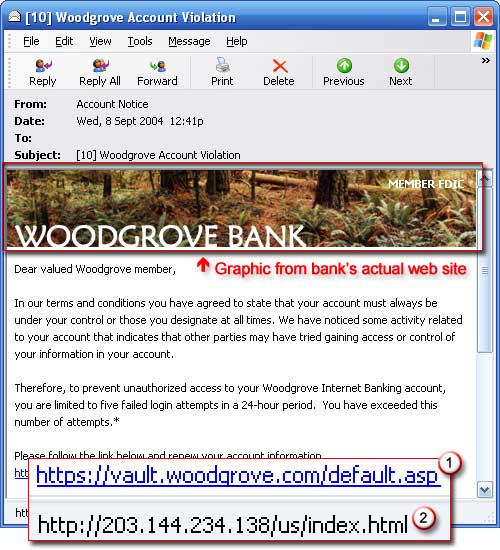
The following is a sample e-mail. As you can see, it’s not obvious at first that this is a fake. It has the bank’s logo at the top and looks legitimate but what gives this one away is the link at the bottom. The posted link (1) shows the real site but if you click on that link you’ll be taken to the site of the 2nd link (2), which is the scam site.

Fake E-mail

Fake E-mail

How can you be sure about the accuracy of a link? In just about every e-mail that has a link, when you hover your mouse arrow over the link without clicking, a pop-up window will show you the actual site that you will be taken to if you click on the link. If it doesn’t match the link shown, be wary.

So what do you do if you get an email that looks legitimate but is asking for you to click on a link to enter personal information or verify your personal information? Don’t click on the links within emails that ask for your personal information. Fraudsters use these links to lure people to phony Web sites that look just like the real sites of the company, organization, or agency they’re impersonating. If you follow the instructions and enter your personal information on the Web site, you’ll deliver it directly into the hands of identity thieves. To check whether the message is really from the company or agency, call the company directly or go to its web site by typing the real address in your browsers address bar, but never click on the link.

Now, what was that password again?

Have you ever brought up a website, be it your bank, insurance company, credit card, etc., only to not remember what you used for the username and password? Or worse, do you use the same username and password for every site you need to log on to? There is a solution, and I’m not talking about the web browser’s “remember this password” prompt.

I use a program call RoboForm (http://www.roboform.com/). RoboForm installs as an add-in to your browser. When you open a website that requires a username and password, RoboForm offers to save what you enter in it’s database. The next time you go to that site, you just click on the site link on the menu bar and it fills in the username and password for you. You can even have RoboForm generate a password for you so you don’t end up using the same password for every site. You can also set it up with your personal information so that when you come to a site where you need to fill in name, address, etc., you click the item on the menu bar and it fills in the blanks for you.

There is a free version that is limited to 10 passwords and 2 identities. The paid version allows unlimited passwords and identities, so you and your family members can each record their own passwords. You can password protect your password list so it is protected from others. Compare the two versions here – http://www.roboform.com/why-pro.html

There is also a version that installs on a USB Flash Drive so you can use it in multiple computers and once you remove the flash drive, no trace of your passwords remains. This is a great version for people who have multiple computers or tend to use public computers since with RoboForm, you don’t need to type in personal data or passwords; it’s all done by clicking on the menu bar item. This defeats any keylogging software that might be on a computer.

So, with RoboForm, you’ll never forget a password again. I recommend it.

What do I do if the file I need is on my home computer and I’m not home?

In this day of multiple computers, there usually comes a time when you need a file or to look at an e-mail when you are away from home only to realize that it’s on your home computer.  Or, you may be visiting a friend when you remember an e-mail you had meant to send and you need to access your e-mail program. When that happens to me, I turn to my remote desktop software LogMeIn, which allows me to access my home computer to find those files or send that e-mail just as if I were at home.

Remote desktop software, such as LogMeIn or GoToMyPC, installs on the computer you want to connect to and then allows you to connect from any internet connection. They are very secure so the connection is locked up with security (you’ll need to be careful when using an internet connection on a public computer since you don’t know what kind of malware is on it). I have been using LogMeIn myself for several years and have been very happy with it.

LogMeIn offers a free version for remote access which is a fine version if you want to run programs or check e-mail on your home computer. If you need to do more, like transfer files, print or share your share files with someone else, you can upgrade to the Pro version for $69.95/year compared to GoToMyPC which goes for $179.40/year. What does one do that the other doesn’t? Nothing really. Some say GoToMyPC is faster but I haven’t really noticed a difference, at least none that would entice me to pay the extra cost.  And, for most people, the free version of LogMeIn will work just fine.

So, when I need that file and it’s at home and I’m not, I just connect to my computer and get it, by using LogMeIn.