Now, what was that password again?

Have you ever brought up a website, be it your bank, insurance company, credit card, etc., only to not remember what you used for the username and password? Or worse, do you use the same username and password for every site you need to log on to? There is a solution, and I’m not talking about the web browser’s “remember this password” prompt.

I use a program call RoboForm (http://www.roboform.com/). RoboForm installs as an add-in to your browser. When you open a website that requires a username and password, RoboForm offers to save what you enter in it’s database. The next time you go to that site, you just click on the site link on the menu bar and it fills in the username and password for you. You can even have RoboForm generate a password for you so you don’t end up using the same password for every site. You can also set it up with your personal information so that when you come to a site where you need to fill in name, address, etc., you click the item on the menu bar and it fills in the blanks for you.

There is a free version that is limited to 10 passwords and 2 identities. The paid version allows unlimited passwords and identities, so you and your family members can each record their own passwords. You can password protect your password list so it is protected from others. Compare the two versions here – http://www.roboform.com/why-pro.html

There is also a version that installs on a USB Flash Drive so you can use it in multiple computers and once you remove the flash drive, no trace of your passwords remains. This is a great version for people who have multiple computers or tend to use public computers since with RoboForm, you don’t need to type in personal data or passwords; it’s all done by clicking on the menu bar item. This defeats any keylogging software that might be on a computer.

So, with RoboForm, you’ll never forget a password again. I recommend it.

Top 5 Internet Do’s and Dont’s – From Trend Micro Consumer Newsletter | Security Tips, Tricks, and Updates September 2008

Top 5 Internet Do’s and Don’ts

Technology is evolving all the time, and so are Internet threats. It can be hard to keep track of how to cope with these challenges when things change so quickly. That’s why we’ve come up with a list of 5 basic principles to help you keep surfing safely—now and in the future.

DO’S

1. Do install a firewall. There are two kinds of firewalls: hardware and software. Most wireless Internet routers also work as firewalls, but you should also have a software firewall for more comprehensive protection.

2. Do install antivirus protection and update your antivirus software regularly. Just having antivirus software is not enough. Virus definitions change all the time, so it’s important to do regular system scans and updates to make sure your protection is current and working.

3. Do shop on secure websites and avoid ones that aren’t secure. You can tell if a site is secure by checking the URL: https:// means it’s secure; http:// means that somebody could “eavesdrop” on your shopping session. You can also look for a padlock icon in the lower part of your browser window. Do not give out your credit card number over an insecure connection.

DON’TS

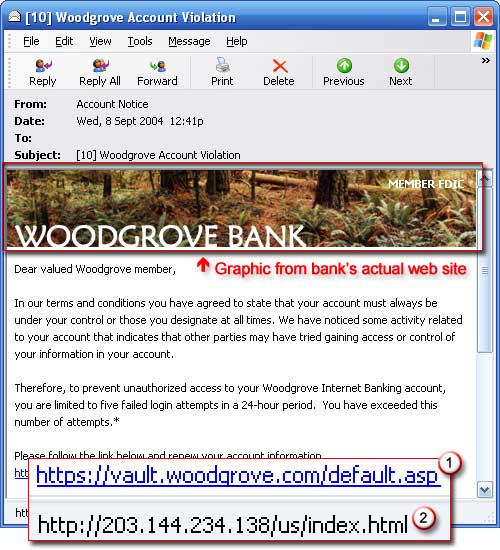
4. Don’t click randomly on links. If you get an email from a suspicious sender encouraging you to “Click here,” figure out where “here” goes first. When you mouse over the link, you should be able to see the URL it connects to at the bottom of your browser. You can also right-click on the link to copy it, and then paste it into a Notepad or Word document to see what it is. And if you’re ever in doubt about a link—don’t click it.

5. Don’t forward chain emails. Many chain emails are sent by professional spammers who use the chain to harvest working addresses. Once you forward on a chain email, the spammer has confirmation that you exist—and you’ll get a lot more unwanted mail where that came from.

http://cdn.rsys1.net/ig.rsys1.net/responsysimages/tne/__RS_CP__/trendsetter_sept08_top5.html

Is Your Wireless Network Open to the World?

If you have wireless access at home, and many people do these days, are you sure that you’re not sharing that access with the neighbors? If you haven’t setup the security in your router, you just may be.

Wireless routers come from the factory with a login name and password to allow you to access and setup the router. This password is the same password for every router sent out by that manufacturer, and is often times just the word “password”.  It is surprising the amount of people who never change the entry password.  If an individual gains access to your network, they will try the manufacturer password to enter the router. If they are successful, they can change settings, open back doors, etc. So the first thing you should do is to find the location in your router software where you change the default password, and do so.

The next thing you should do, and this will protect your wireless network from outsiders, is to setup the SSID name and password. The SSID name is the identifying name that shows up when you look for wireless connections on your pc. It identifies you. If you don’t have it password protected, it will show up as unlocked. This allows any of your neighbors to use your internet connection, or anyone driving down the street to stop and use your connection on their laptops. By setting up with a password, you will prevent that from happening, and prevent your home network as well. There are WEP passwords and WPA passwords. If you have the option, choose the WPA as it’s much stronger but if you have older equipment then you may only have the WEP option. Either way, use one. With WEP, you also can choose between 64 bit and 128 bit security. 128 bit is much stronger than 64. Keep in mind that you’ll need to enter that password on any computer connecting to the network, but you only have to do so once.

Protect your network. It’s an easy thing to do.

Internet Security – What is it and why do I need it?

Did you know that most computer viruses don’t come from email anymore? They come from infected websites. And, they’re not just viruses but botnets and trojan horses. What is all this stuff? A botnet is a piece of software that is placed on your computer that has instructions to do various things like send out viruses and other bots. Sometimes they even have instructions to record your keystrokes and send them back to the originator. Those keystrokes contain your passwords to certain sites. A trojan horse is a program that offers to install a useful item, like a menu bar, and then as part of the install it puts viruses or botnets on your computer. Another thing they could do is to open backdoors to your computer to allow entry at some future point for someone to put a bot or keyboard recorder on your computer.

This all said, it is critical that you have an anti-virus program and a firewall on your computer. Yes, browsers are getting better with their security (see the Firefox article) but people creating the malware are continually working on ways to get around the security. When looking for an antivirus program, look for one that has both antivirus protection and a firewall built in. Don’t trust the Windows Firewall that is installed with your operating system. If you don’t have a firewall, a good free firewall is COMODO Firewall (http://www.personalfirewall.comodo.com/). Another one is Zone Alarm (http://www.zonealarm.com/store/content/catalog/products/zonealarm_free_firewall.jsp). When you install a firewall, you’ll have to teach it what programs to allow to connect to the internet so for the first few days, you’ll be getting popups asking.

As for anti-virus software, the best ones you’ll have to pay for, and there are a couple of free ones that are pretty good. AVG (http://free.avg.com/) and Avast (http://www.avast.com/eng/avast_4_home.html) will give you good virus protection. Whatever anti-virus program you use, make sure that it is set to automatically download updates. There are thousands of new malware items released each month so it’s critical that your computer is protected.