• by Bill Jimenez

  • Schedule Remote Computer Support

  • Recent Posts

  • Archives

  • Pages

Windows Updates – How can I choose what to install?

Microsoft introduced the concept of Patch Tuesday a few years ago. The idea is that security patches are accumulated over a period of one month, and then dispatched all at once on the second Tuesday of the month. Windows Update is a service that provides updates for the operating system and its installed components. Microsoft Update is an optional feature that can be enabled to provide updates for other Microsoft software installed on a Windows computer, such as Office. These updates can come anytime throughout the month.

If your computer is setup to automatically download and install updates, you will get any and all updates and patches, both good and bad. By default, the automatic settings will check for updates at 3:00 in the morning, every morning. If you turn your computer off at night, it never has a chance to check for updates so if you want to keep the automatic settings, you should change the settings to a time when you know the computer will be on. To change the settings, open the Control Panel and double click on Security Center. At the bottom, you can choose to manage settings for Automatic Updates.

My recommendation is to change the setting to the second option, which is to download the updates but let me choose when to install them. What happens then is that the updates will download and there will be a yellow shield down on the right by the clock. When I double click on it, I will have the option for an “Express Install” or a “Custom Install”. I always choose the custom install. That choice lets me pick which updates and patches to install.

I will always install security patches and program patches, but I never install new service packs when they’re first available. I’ll uncheck those and install the rest. I’ll continue to uncheck them until I know they are safe to install.

Just to be clear, when I see that shield, I will always check what’s downloaded and install what’s appropriate. The bad guys out there wait for the patches to come out also so they can create programs that hit all computers that aren’t patched. Lately, that attack will come the day after the patches are released so it is very important to install them.

Every so often, you will get a notice from another program, such as Adobe, that it has an update available. Should you install those as well? I’d say yes, since virus writers look for holes in most of the popular programs that people will have on their computers and will attack those programs as well.

I know it’s a hassle to do these updates, but do them since it’s more of a hassle cleaning an infected computer.

NOTE: One other important matter; create a system restore point before doing any updates. That way, if an update messes up the computer, you’ll be able to restore it to the point just before you did the updates. For instructions on creating a restore point in Vista, click here, For XP, click here. You can download a great document from Microsoft for securing your Vista computer here.

AVG Antivirus Update Issue & Notebook Battery Recall

An FYI if you use the free AVG antivirus software: a recent update of AVG’s antivirus software caused some user’s Internet connections to be blocked. AVG’s support page indicates that after upgrading to AVG version 8.0.196, your network link may fail.

If rebooting your PC doesn’t fix the problem, follow the instructions on AVG’s support page to download the fixfiles.zip file to your computer. Double-click the .zip file to open it, and then double-click fixfiles.exe in the resulting folder to run the utility.

If the problem remains, the company recommends that you run a repair installation of your AVG app. If reinstalling your antivirus software doesn’t get you back online, AVG advises that you contact the company’s support desk for further instructions.


PC Notebook Computer Batteries Recalled Due to Fire and Burn Hazard – Lithium-Ion Batteries used in Hewlett-Packard, Toshiba and Dell Notebook Computers. To find out if your laptop battery is one that is being recalled, see the list here: http://www.cpsc.gov/cpscpub/prerel/prhtml09/09035.html


From the U.S. Consumer Product Safety Commission

WASHINGTON, D. C. – Change your clocks. Replace your smoke alarm batteries. Both are important this weekend as Daylight Saving Time ends on Sunday, November 2.

While changing your clock can keep you on time for work on Monday, the U.S. Consumer Product Safety Commission (CPSC) advises consumers that putting fresh batteries in your smoke alarms can save your life. In recent years, an estimated annual average of 378,700 fires, 2,740 deaths, 13,090 injuries and $5.6 billion in property losses associated with residential fires have been reported by fire departments.

“Smoke alarms save lives. That’s a fact,” said CPSC Acting Chairman Nancy Nord. “Working smoke alarms buy you valuable time to get out of your home when there’s a fire.”

To read the entire article, click here

Microsoft posts emergency defense for new attack

By Susan Bradley in Windows Secrets Newsletter

A remote-code exploit that could spread rapidly like the 2003 MSBlaster worm is putting all versions of Windows at risk.

I recommend that you immediately install a patch that Microsoft has just issued to protect your system from a vulnerability in the Server service.


MS08-067 (958644)
Rare out-of-cycle patch emphasizes the risk

With little warning, Microsoft released yesterday an unscheduled or “out-of-cycle” patch for a highly critical vulnerability that affects all versions of Windows. Security bulletin MS08-067 (patch 958644) was posted to warn of a remote-code attack that could spread wildly across the Internet.

Microsoft says it found evidence two weeks ago of an RPC (remote procedure call) attack that can potentially infect Windows machines across the Net with no user action required.

Windows Server 2003, 2000, and XP (even with Service Pack 2 or 3 installed) are particularly vulnerable. Vista and Server 2008 gain some protection via User Account Control, data-execution protection, and other safeguards, as explained in an article by Dan Goodin in the Register.

While firewalls are a first line of defense against this attack, don’t think you’re secure just because you have a firewall. Malware and viruses use many different techniques to wiggle their way into our systems.

For example, my office’s networks are protected by firewalls on the outside, but inside the network, PCs have file and printer sharing enabled. If a worm got loose inside the office network (and the patch hadn’t been installed), the attack would spread like wildfire.

Many antivirus vendors have already issued definition updates that protect against this attack. Your antivirus program, however, may not protect you completely even if your AV definitions are up-to-date. Early reports indicate that there are already nine different strains of viruses trying to take advantage of this vulnerability. We can expect more to come, so even the best AV application may not be able to update fast enough.

I’ve tested this patch and have had no problems applying it. I strongly urge you to download and install this patch manually. Restart your PC before installing any patch to verify that your machine is bootable. Then be sure to reboot again after installing the patch, so the patched binaries completely replace the vulnerable components.

Microsoft has posted several versions of the patch that apply to different operating systems:

• Windows 2000 with Service Pack 4 patch download
• Windows XP with Service Pack 2 or 3 patch download
• Windows XP 64-bit Edition patch download
• Windows Server 2003 with Service Pack 1 or 2 patch download
• Windows Server 2003 64-bit Edition patch download
• Windows Vista with or without Service Pack 1 patch download
• Windows Vista 64-bit Edition with or without Service Pack 1 patch download
• Windows Server 2008 32-bit Edition patch download
• Windows Server 2008 64-bit Edition patch download

More information: Please read security bulletin MS08-067. For an excellent technical explanation of the vulnerability and possible mitigations, read TechNet’s Oct. 23 description. (TechNet incorrectly refers to MS08-067 as “out-of-band,” but the patch is simply out-of-cycle, because it wasn’t released on Microsoft’s usual Patch Tuesday monthly cycle.)

The Patch Watch column reveals problems with patches for Windows and major Windows applications. Susan Bradley recently received an MVP (Most Valuable Professional) award from Microsoft for her knowledge in the areas of Small Business Server and network security. She’s also a partner in a California CPA firm.

Anyone up for a little phishing?

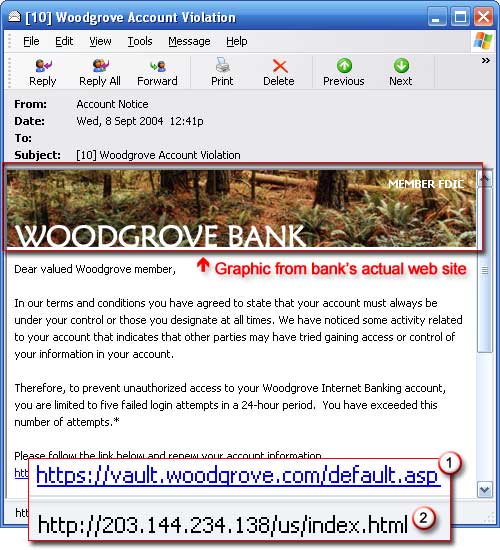
Yes, I spelled that right. Phishing is the act of sending an e-mail to a user falsely claiming to be an established legitimate enterprise in an attempt to scam the user into surrendering private information that will be used for identity-theft. The e-mail directs the user to visit a web site where they are asked to update personal information, such as passwords and credit card, social security, and bank account numbers, that the legitimate organization already has. The Web site, however, is bogus and set up only to steal the user’s information. Phishing mail often includes official-looking logos and other identifying information taken directly from legitimate Web sites, and it may include convincing details about your personal information that scammers found on your social networking pages.

The following is a sample e-mail. As you can see, it’s not obvious at first that this is a fake. It has the bank’s logo at the top and looks legitimate but what gives this one away is the link at the bottom. The posted link (1) shows the real site but if you click on that link you’ll be taken to the site of the 2nd link (2), which is the scam site.

Fake E-mail

Fake E-mail

How can you be sure about the accuracy of a link? In just about every e-mail that has a link, when you hover your mouse arrow over the link without clicking, a pop-up window will show you the actual site that you will be taken to if you click on the link. If it doesn’t match the link shown, be wary.

So what do you do if you get an email that looks legitimate but is asking for you to click on a link to enter personal information or verify your personal information? Don’t click on the links within emails that ask for your personal information. Fraudsters use these links to lure people to phony Web sites that look just like the real sites of the company, organization, or agency they’re impersonating. If you follow the instructions and enter your personal information on the Web site, you’ll deliver it directly into the hands of identity thieves. To check whether the message is really from the company or agency, call the company directly or go to its web site by typing the real address in your browsers address bar, but never click on the link.

Now, what was that password again?

Have you ever brought up a website, be it your bank, insurance company, credit card, etc., only to not remember what you used for the username and password? Or worse, do you use the same username and password for every site you need to log on to? There is a solution, and I’m not talking about the web browser’s “remember this password” prompt.

I use a program call RoboForm (http://www.roboform.com/). RoboForm installs as an add-in to your browser. When you open a website that requires a username and password, RoboForm offers to save what you enter in it’s database. The next time you go to that site, you just click on the site link on the menu bar and it fills in the username and password for you. You can even have RoboForm generate a password for you so you don’t end up using the same password for every site. You can also set it up with your personal information so that when you come to a site where you need to fill in name, address, etc., you click the item on the menu bar and it fills in the blanks for you.

There is a free version that is limited to 10 passwords and 2 identities. The paid version allows unlimited passwords and identities, so you and your family members can each record their own passwords. You can password protect your password list so it is protected from others. Compare the two versions here – http://www.roboform.com/why-pro.html

There is also a version that installs on a USB Flash Drive so you can use it in multiple computers and once you remove the flash drive, no trace of your passwords remains. This is a great version for people who have multiple computers or tend to use public computers since with RoboForm, you don’t need to type in personal data or passwords; it’s all done by clicking on the menu bar item. This defeats any keylogging software that might be on a computer.

So, with RoboForm, you’ll never forget a password again. I recommend it.

Top 5 Internet Do’s and Dont’s – From Trend Micro Consumer Newsletter | Security Tips, Tricks, and Updates September 2008

Top 5 Internet Do’s and Don’ts

Technology is evolving all the time, and so are Internet threats. It can be hard to keep track of how to cope with these challenges when things change so quickly. That’s why we’ve come up with a list of 5 basic principles to help you keep surfing safely—now and in the future.

DO’S

1. Do install a firewall. There are two kinds of firewalls: hardware and software. Most wireless Internet routers also work as firewalls, but you should also have a software firewall for more comprehensive protection.

2. Do install antivirus protection and update your antivirus software regularly. Just having antivirus software is not enough. Virus definitions change all the time, so it’s important to do regular system scans and updates to make sure your protection is current and working.

3. Do shop on secure websites and avoid ones that aren’t secure. You can tell if a site is secure by checking the URL: https:// means it’s secure; http:// means that somebody could “eavesdrop” on your shopping session. You can also look for a padlock icon in the lower part of your browser window. Do not give out your credit card number over an insecure connection.

DON’TS

4. Don’t click randomly on links. If you get an email from a suspicious sender encouraging you to “Click here,” figure out where “here” goes first. When you mouse over the link, you should be able to see the URL it connects to at the bottom of your browser. You can also right-click on the link to copy it, and then paste it into a Notepad or Word document to see what it is. And if you’re ever in doubt about a link—don’t click it.

5. Don’t forward chain emails. Many chain emails are sent by professional spammers who use the chain to harvest working addresses. Once you forward on a chain email, the spammer has confirmation that you exist—and you’ll get a lot more unwanted mail where that came from.

http://cdn.rsys1.net/ig.rsys1.net/responsysimages/tne/__RS_CP__/trendsetter_sept08_top5.html

Is Your Wireless Network Open to the World?

If you have wireless access at home, and many people do these days, are you sure that you’re not sharing that access with the neighbors? If you haven’t setup the security in your router, you just may be.

Wireless routers come from the factory with a login name and password to allow you to access and setup the router. This password is the same password for every router sent out by that manufacturer, and is often times just the word “password”.  It is surprising the amount of people who never change the entry password.  If an individual gains access to your network, they will try the manufacturer password to enter the router. If they are successful, they can change settings, open back doors, etc. So the first thing you should do is to find the location in your router software where you change the default password, and do so.

The next thing you should do, and this will protect your wireless network from outsiders, is to setup the SSID name and password. The SSID name is the identifying name that shows up when you look for wireless connections on your pc. It identifies you. If you don’t have it password protected, it will show up as unlocked. This allows any of your neighbors to use your internet connection, or anyone driving down the street to stop and use your connection on their laptops. By setting up with a password, you will prevent that from happening, and prevent your home network as well. There are WEP passwords and WPA passwords. If you have the option, choose the WPA as it’s much stronger but if you have older equipment then you may only have the WEP option. Either way, use one. With WEP, you also can choose between 64 bit and 128 bit security. 128 bit is much stronger than 64. Keep in mind that you’ll need to enter that password on any computer connecting to the network, but you only have to do so once.

Protect your network. It’s an easy thing to do.

Internet Security – What is it and why do I need it?

Did you know that most computer viruses don’t come from email anymore? They come from infected websites. And, they’re not just viruses but botnets and trojan horses. What is all this stuff? A botnet is a piece of software that is placed on your computer that has instructions to do various things like send out viruses and other bots. Sometimes they even have instructions to record your keystrokes and send them back to the originator. Those keystrokes contain your passwords to certain sites. A trojan horse is a program that offers to install a useful item, like a menu bar, and then as part of the install it puts viruses or botnets on your computer. Another thing they could do is to open backdoors to your computer to allow entry at some future point for someone to put a bot or keyboard recorder on your computer.

This all said, it is critical that you have an anti-virus program and a firewall on your computer. Yes, browsers are getting better with their security (see the Firefox article) but people creating the malware are continually working on ways to get around the security. When looking for an antivirus program, look for one that has both antivirus protection and a firewall built in. Don’t trust the Windows Firewall that is installed with your operating system. If you don’t have a firewall, a good free firewall is COMODO Firewall (http://www.personalfirewall.comodo.com/). Another one is Zone Alarm (http://www.zonealarm.com/store/content/catalog/products/zonealarm_free_firewall.jsp). When you install a firewall, you’ll have to teach it what programs to allow to connect to the internet so for the first few days, you’ll be getting popups asking.

As for anti-virus software, the best ones you’ll have to pay for, and there are a couple of free ones that are pretty good. AVG (http://free.avg.com/) and Avast (http://www.avast.com/eng/avast_4_home.html) will give you good virus protection. Whatever anti-virus program you use, make sure that it is set to automatically download updates. There are thousands of new malware items released each month so it’s critical that your computer is protected.