• by Bill Jimenez

  • Schedule Remote Computer Support

  • Recent Posts

  • Archives

  • Pages

Windows Black Screen of Death: What You Need to Know – PC World

Windows Black Screen of Death: What You Need to Know

Brennon Slattery

Dec 1, 2009 6:40 am

Any Windows owner is familiar with the Blue Screen of Death, that much-dreaded white text on a blue background that essentially says you're through. But what you may not know is that there's a new contender in town: the Black Screen of Death. So what is this horrible-sounding thing, where did it come from, what's being done to fix it, and how bad is it? Here are five things you need to know about the Black Screen of Death.

It stems from Microsoft security updates

After the latest Microsoft patch was delivered on Tuesday, November 10, 2009, users began reporting a crippling black screen. The Black Screen of Death causes your PC to seize up and removes everything except, in some cases, a single open My Computer window. So what happened?

Microsoft apparently made changes to the Access Control List (ACL), a list of permissions for a logged-on user. The ACL interacts with registry keys, creating visible desktop features such as a sidebar. However, the latest patches appear to make some changes to those registry keys. The effect is that some installed applications aren't aware of the changes and don't run properly.

It's not Windows 7-specific

Windows 7 haters: step back. The Black Screen of Death isn't relegated to Microsoft's latest OS. Security firm Previx states that the Black Screen of Death can affect Windows XP, Vista, and Windows 7 without prejudice. So if you're considering uninstalling Windows 7, fearful that it is the source of the problem, don't bother. You won't dodge any bullet.

Microsoft is investigating

Gotta give it to Microsoft: It has a clever way of neither confirming nor denying the existence of a PC illness. In an e-mail statement obtained by PC World yesterday, a company spokesperson wrote: “Microsoft is investigating reports that its latest release of security updates is resulting in system issues for some customers. Once we complete our investigation, we will provide detailed guidance on how to prevent or address these issues.”

So does it exist or not? Yes it does. But Microsoft won’t say for absolutely positively certain until it has finished investigating. That’s when they broadly release a fix for the issue and maybe, if we’re lucky, apologize for the inconvenience.

Security firm Prevx has a fix

Prevx, a UK security company that first discovered the issue, released both step-by-step instructions and a download to eliminate the Black Screen of Death. For those who like (and are capable of) popping open the hood of their PC, you can also modify registry settings, though this doesn’t come recommended if you’re unfamiliar with the guts of a Windows machine.

Not as bad as Blue Screen of Death

So how powerful is this beast? Does it compare to the Blue Screen of Death? Nope — they are entirely different problems. The Blue Screen of Death represents a hardware or driver failure, meaning something is wrong deep within the computer. The Black Screen of Death has relatively easy fixes and doesn’t necessarily mean there is something physically wrong with your equipment.

By now some of you may be sick to death of problems stemming from Microsoft and want a clean slate. Here’s how to wipe your PC clean and start from scratch. It may not necessarily be the solution to your problem, or problems, but it can be a gush of therapeutic refreshment to eliminate (most) everything that’s wrong with your computer.

Stay tuned to catch Microsoft’s official fix as soon as it is released.

via Windows Black Screen of Death: What You Need to Know – PC World.

Never forget to back up your files ever again. Now it’s easy and automatic.

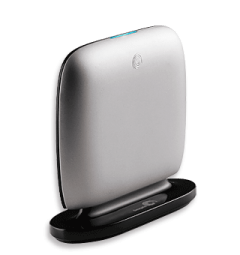
Seagate® Replica™

* Back up your entire computer automatically.
* Take the work and maintenance out of backup.
* Have easy, instant access to accidentally deleted files.
* Effortless, automatic backup for everything on your PC, including the operating system, programs, and settings.
* No tedious installation, nothing to configure.
* Up to 250GB capacity for single PC and 500 GB for multiple PCs.
* USB 2.0.

Every file is perfectly safe.

From a little mistake to a major catastrophe, your files will always come back.

* Easily retrieve accidentally deleted files.
* Restore your entire system in the event of a PC crash.

No maintenance. No hassle.

There’s nothing to forget to do. So everything is always safe.

* Password protection ensures that only you have access to your computer’s backed up files.
* Replica automatically removes the oldest versions of files to free space.
* Five-year limited warranty.
* Multi-PC version includes a convenient vertically standing dock.

Weighing in at less than a pound and only slightly larger than a pack of cards, this featherweight device manages to pack quite a punch.

The Replica comes with bare-bones software and strikes a good balance between peace of mind and individual-user control. Seagate provides a USB 2.0 cable, recovery guide and recovery CD.

After the hard drive is plugged in, it checks for updates to the Replica software, downloads the most current version and starts mirroring your computer’s content. The startup process is short, taking only a couple of minutes, though the actual backup is a time-gobbling endeavor taking about 4 hours to transfer 130 GB of data. A blue light on the top of the Replica’s case blinks continuously while data is being transferred, making it easy for you to go about your other business while it works in the background. It’s also stealthy for a hard drive, emitting only a quiet whir when working at full speed.

http://www.seagate.com/www/en-us/products/external/replica/

replica_right_01_320x340.png

Shop online? You may have been ripped off – OC Watchdog : The Orange County Register

Shop online? You may have been ripped off

November 18th, 2009, 12:06 pm · posted by Teri Sforza, Register staff writer

So you’re booking your flight, or ordering your movie tickets, or paying for your pizza online. It’s a mainstream web site. No worries.

You type in your credit card information, click the “purchase” button, and enjoy your flight/movie/pizza. But a few months later, mystery charges of $10 to $20 a month appear on your bank statement, for membership in a club you have no memory of joining.

Surprise! You’ve been a victim of consumer fraud – thanks to that web site you trusted.

The practice is pervasive, and has cost unsuspecting consumers $1.4 billion, according to “Aggressive Sales Tactics on the Internet and Their Impact on American Consumers,” an investigative report released Tuesday by the U.S. Senate Committee on Commerce, Science, and Transportation. (You can read the full report here: online-ripoffs; and can find supporting documents here.)

Companies named in the report – and apparently profiting on the scam – include 1-800-Flowers.com, Inc.; AirTran Holdings, Inc.; Classmates.com, Inc.; Continental Airlines, Inc.; FTD, Inc.; Fandango, Inc.; Hotwire, Inc.; Intelius, Inc.; MovieTickets.com, Inc.; Orbitz Worldwide, Inc.; Pizza Hut, Inc.; Priceline.com, Inc.; Redcats USA, Inc.; Shutterfly, Inc.; US Airways Group, Inc.; and VistaPrint USA, Inc. (But that’s not all of them; there are many, many, many more.)

How does the scam work? Consider the experience of Chris Steffen of Los Angeles, who bought movie tickets through Movietickets.com in April 2007.

“I‘m not sure how or when this happened and I‘m sure part of it is oversight or my own fault,” Steffen wrote in a complaint. ”But somehow through the purchasing of movie tickets through your site I was signed up for Reservation Rewards and charged 10 dollars a month membership for multiple months. This means that when I ordered tickets through your service, the cost to me was not only the price of the tickets, but the inadvertent cost of being enrolled in a service plan I was not aware of.”

Read the rest of the article here –  Shop online? You may have been ripped off – OC Watchdog : The Orange County Register.

Apple voids warranties over cigarette smoke, users say • The Register

Apple voids warranties over cigarette smoke, users say

No repairs for “biohazard” Macs

By Cade Metz in San Francisco

Posted in PCs & Chips, 22nd November 2009 06:13 GMT

A Mac user claims that Apple voided her warranty and refused to repair her machine because it was “contaminated” with cigarette smoke.

The claim mirrors a similar report from last year, when another user complained that the Jobsian cult wouldn't service a system due to the “health risks of secondhand smoke.”

Both complaints arrive by way of The Consumerist, a site obsessed with consumer empowerment. According to the site, the claims come from separate parts of the country and were reported more than a year apart.

In each case, the site says, an Apple service center agreed to repair a machine before telling the owner repairs were not possible because the system contained some sort of smoke residue. “They informed me that his computer can't be worked on because it’s contaminated,” wrote one woman in a complaint about Apple’s treatment of the iMac her son used.

“When I asked for an explanation, she said he’s a smoker and it’s contaminated with cigarette smoke which they consider a bio-hazard! I checked my Applecare warranty and it says nothing about not honoring warranties if the owner is a smoker. The Applecare representative said they defer to the technician and my son’s computer cannot be fixed at any Apple Service Center due to being listed a bio-hazard.”

Indeed, the warranty does not include mention of either secondhand smoke or biohazards. It does say that the plan does not cover “damage to the covered equipment caused by…extreme environment,” but both Consumerist claims indicate systems failures weren’t necessarily related to smoke residue. One user even says that smoke residue was falsely identified.

Both users appealed directly to the office of Steve Jobs. According to one, the office confirmed that the cult would not repair machines showing signs of smoke residue. “[A person from Jobs’ office] did advise me that nicotine is on OSHA [Occupational Safety and Health Administration]’s list of hazardous substances and Apple would not require an employee to repair anything deemed hazardous to their health,” the user said.

Apparently, the Jobsian office worker contacted the Apple Store in question to see about a possible repair – before calling back to say it was out of the question. “[The worker] called me earlier this week to deliver the ‘bad news.’ She said that the computer is beyond economical repair due to tar from cigarette smoke! She said the hard drive is about to fail, the optical drive has failed and it isn’t feasible to repair the computer under the warranty.

“This computer is less than 2 years old! Only one person in my household smokes – one 21 year old college student. She said that I can get it repaired elsewhere at my expense. I asked why my warranty didn’t cover the repair and was told it’s an OSHA violation.”

via Apple voids warranties over cigarette smoke, users say • The Register.

Online Holiday Shopping Tips

The holiday season is approaching quickly and many of us will be shopping online. It’s important that consumers understand the potential security risks and know how to protect themselves and their information.
The following tips are provided to help promote a safe, secure online shopping experience:

  • Secure your computer. Make sure your computer has the latest security updates installed. Check that your anti-virus/anti-spyware software is running and receiving automatic updates. If you haven’t already done so, install a firewall before you begin your online shopping.
  • Upgrade your browser. Upgrade your Internet browser to the most recent version available. Review the browser’s security settings. Apply the highest level of security available that still gives you the functionality you need.
  • Ignore pop-up messages. Set your browser to block pop-up messages. If you do receive one, click on the “X” at the top right corner of the title bar to close the pop-up message. If that doesn’t work, close your browser. Never accept a pop-up window’s notice that your computer is infected. That should only come from your installed and updated anti-virus program. What? You say you don’t have an anti-virus program? Read my previous post on that here.
  • Secure your transactions. Look for the “lock” icon on the browser’s status bar and be sure “https” appears in the website’s address bar before making an online purchase. The “s” stands for “secure” and indicates that the webpage is encrypted. Some browsers can be set to warn the user if they are submitting information that is not encrypted.
  • Use strong passwords. Create strong passwords for online accounts. Use at least eight characters, with numbers, special characters, and upper and lower case letters. Don’t use the same passwords for online shopping websites that you use for logging onto your home or work computer. Never share your login and/or password.
  • Do not e-mail sensitive data. Never e-mail credit card or other financial/sensitive information. E-mail is like sending a postcard and other people have the potential to read it.
  • Do not use public computers or public wireless to conduct transactions. Don’t use public computers or public wireless for your online shopping. Public computers may contain malicious software that steals your credit card information when you place your order. Criminals may be monitoring public wireless for credit card numbers and other confidential information.
  • Review privacy policies. Review the privacy policy for the website/merchant you are visiting. Know what information the merchant is collecting about you, how it will be used, and if it will be shared or sold to others.
  • Make payments securely. Pay by credit card rather than debit card. Credit/charge card transactions are protected by the Fair Credit Billing Act. Cardholders are typically only liable for the first $50 in unauthorized charges. If online criminals obtain your debit card information they have the potential to empty your bank account.
  • Use temporary account authorizations. Some credit card companies offer virtual or temporary credit card numbers. This service gives you a temporary account number for online transactions. These numbers are issued for a short period of time and cannot be used after that period. – Read a nice article here on the use of virtual credit cards. Additionally, PayPal offers free disposable credit cards numbers. You can read about that here.
  • Select merchants carefully. Limit your online shopping to merchants you know and trust. Confirm the online seller’s physical address and phone number in case you have questions or problems. If you have questions about a merchant check with the Better Business Bureau or the Federal Trade Commission.
  • Keep a record. Keep a record of your online transactions, including the product description and price, the online receipt, and copies of every e-mail you send or receive from the seller. Review your credit card and bank statements for unauthorized charges.

What to do if you encounter problems with an online shopping site:
If you have problems shopping online contact the seller or site operator directly. If those attempts are not successful, you may wish to contact the following entities:

the Attorney General’s office in your state
your county or state consumer protection agency
the Better Business Bureau at: www.bbb.org
the Federal Trade Commission at: www.ftc.gov/

For additional information about safe online shopping, please visit the following sites:

The “Noteable” Mousepad

Such a simple idea, but a wonderful one. Not sure if you have to wipe out the marks left by the mouse but if you keep your mouse to half of it, you can scribble on the other half and then just lift the top sheet to wipe it out and start again. And, it’s under $15.00

The Noteable Mousepad – http://www.quirky.com/products/9

Scratch-n-Scroll is a standard mousepad with an added writing surface. This mousepad is for all those times you are working at your desk and cant find a pen to jot down that phone number or list item you know you will forget later on.

Simply, write notes to yourself on your mouse pad using just the pressure from your finger or the built in plastic stylus as a “pen.” Cool thing is, just like your childhood toy the magic slate, you can erase the notes at any time simply by flipping up the semi-transparent top sheet.

Scratch-n-scroll maintains the slim portable design and scrolling surface you’ve come to expect of a standard mousepad, and works in conjunction with any optical / ball based computer mouse. It features a non-slip back pad ensuring that it stays put on your desktop while in use.

scratch-n-scroll.jpg

Nokia Recalls 14 Million AC Adapters – Gearlog

Anyone who bought a Nokia cell phone recently listen up: Nokia has just launched a recall program for certain Nokia-branded AC adapters.

“We have determined that the plastic covers of the affected chargers could come loose and separate, exposing the charger’s internal components and potentially posing an electric shock hazard if certain internal components are touched while the charger is plugged into a live socket.”

Sounds fun. Engadget Mobile reports that the affected chargers are models AC-3E and AC-3U, manufactured between June 15 and August 9, 2009, and model AC-4U, manufactured between April 13 and October 25, 2009. Check out Nokia’s dedicated recall Web site for more information on obtaining a free replacement.

via Nokia Recalls 14 Million AC Adapters – Gearlog.

What Did He Mean By That? SMS and E-mail Etiquette

The other day I was reminded of how important it is when e-mailing or texting that you make yourself “understood”. What I mean by that is when e-mailing or texting, what you write is left to the recipient to interpret the mood or intent of the words. Sometimes the words are taken the wrong way.

I received a request to do something via text and it was followed up a few minutes later with another request by the same person for the same thing. I hadn’t had time to reply to the first text so I jokingly sent out a reply to the second letting the person know that I’d get right on that request. Since it wasn’t anything important that needed to be done right away, and they knew that as well, I thought the reply would be taken good naturedly. Well, it wasn’t. Not sure if the person was having a bad day or not, but they let me know that they weren’t real happy with my flippant reply. When I let them know that it wasn’t meant to be flippant, they let me know that sometimes their phone sends messages twice when they only mean to send it once. Communication breakdown? Yes, but also a good reminder that when e-mailing and texting, there is etiquette to follow:

  • Be wary of the reply all button. Most of the time you would only want to reply to the sender, not to everyone on the list.
  • Don’t type in all caps. That’s the equivalent of shouting. Not nice.
  • Watch for excessive punctuation. There is no need to put 5 exclamation marks at the end of a sentence!!!!! And I mean it.
  • Acronyms. Don’t assume that everyone is going to know what ROTFL (rolling on the floor laughing) or TNSTAAFL (there’s no such thing as a free lunch) means. There are some common abbreviations, such as BTW (by-the-way) and FYI (for your information) but some of the others, well, write the words. If you need to find out what something means, check the Acronym List.
  • Let them know how you feel. What happened to me the other day could have been avoided if I had included a smiley with my reply. These need to be added with care, as in less is more, but in this instance, adding one would have let the other person know that I was saying it light-heartedly. Part of the nature of a good one-on-one conversation are the use of visual cues. Since there are no visual or auditory cues with e-mail or texts, users have come up with something called “smilies”. They are simple strings of characters that are typed in the e-mail text to convey your emotions or meaning. The most common example is :-).  Here are some more examples.  – Smileys and Emoticons. Use them to let the other person know what you mean. 😉
  • When forwarding on an e-mail, remove the e-mail addresses that are on the original e-mail. Highlight and delete them before you send. That puts the text that you want read at the top of the e-mail and removes unwanted items. I don’t need to see who the e-mail was sent to before me.
  • Scan through your text or e-mail before you press Send. Check the recipients to make sure that it’s going to the right person(s). See if there are parts that shouldn’t be said or should possibly be said differently. If there needs to be a smiley inserted to clarify intent, do so.

The internet’s 40th birthday: anniversary of Arpanet – Telegraph

On 29 October 1969, two letters – LO – were typed on a keyboard in the University of California, Los Angeles (UCLA), and appeared on a screen at the Stanford Research Institute, 314 miles away.

The computer scientists had intended to type LOGIN, but the connection was lost just before the G. Nonetheless, this was the first time a message had been sent over a telephone line between two computers.

It was not called the internet – that name was not coined for another five years. It was called Arpanet, for Advanced Research Projects Agency Network, and was developed by scientists in the US Defense Department.

Nor was it the World Wide Web – that was created by the British scientist Tim Berners-Lee, now Sir Tim Berners-Lee, at Cern, the Geneva physics laboratory that now houses the Large Hadron Collider, 20 years ago in March.

And email had existed for a few years before that, between different terminals on single mainframes; the first true email sent between different computers was not sent until 1971.

But 29 October is as good a birthday as any. Those two letters, typed by an undergraduate at UCLA called Charley Kline on an “interface message processor”, were the precursors of everything from the eBay Buy It Now button to LOLcats, Kara’s Adult Playground (we won’t link to that) to Google Wave.

They say life begins at 40. It will be extremely interesting to see where the next 40 years take us.

via The internet’s 40th birthday: anniversary of Arpanet – Telegraph.

What Can The Wheel On My Mouse Be Used For?

We often get so used to using a device for one or two things that we fail to remember what else it can be used for. Such is the case with the wheel that is on most computer mice.

I use it mostly for scrolling up and down a page, but occasionally I’ll need to enlarge or shrink the text on a page and it’s perfect for doing that as well.

To enlarge the text on a page, hold the Ctrl key and turn the scroll wheel away from you. To decrease the size, hold the Ctrl key and rotate the scroll wheel towards you.

A few other things you can do with the mouse wheel and Internet Explorer or Firefox:

1. Closing Tabs
To close a tab just place your mouse cursor on a tab and click with the scroll wheel. This is more convenient and faster than clicking the small cross on the tabs, although sometimes you may have to click the wheel twice.

2. Opening hyperlinks in a new tab
Very often we would like to open a link in a page in a new tab. The normal way to do this is by right-clicking on the the link and choosing ‘Open Link in New Tab‘.  A much quicker way is to just click on the link with the scroll wheel and the link will open in a new tab. You can even click on the Home button or the Forward/Back button to open the respective url in a new tab.

3. Moving Forward/Back
You can use the scroll wheel as an alternative to using the Forward and Back buttons on the toolbar. Hold down the Shift key and rotate the wheel forward to view the next page or rotate backward to see the previous page.

4. Scrolling

On most mice with wheels, you can press down on the wheel once and then by just moving the mouse up or down, the screen will scroll. The further down the page you move the mouse, the faster it will scroll. To turn this off and return to normal use, click the mouse wheel down again.